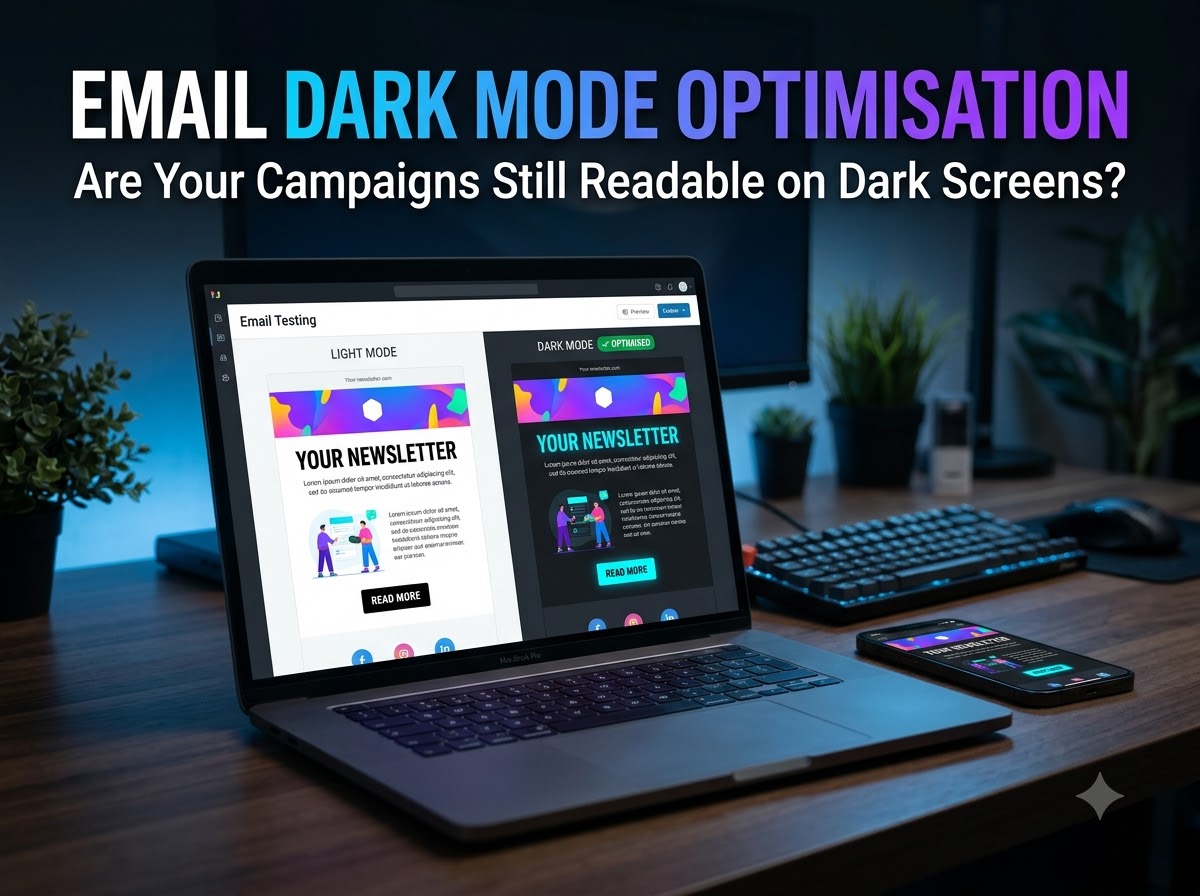
Email Dark Mode Optimisation: Are Your Campaigns Still Readable on Dark Screens?
Email dark mode optimisation is no longer optional. Almost everyone uses dark mode on their phones, laptops and desktop computers, and you can’t ignore it. It's much easier on the eyes in low-light environments and helps limit night-time blue light exposure. Many apps offer dark mode, including Gmail, Apple Mail and Outlook. Some people even set their entire phone to dark mode, which affects how every application and even emails appear on the screen.
When a user applies dark mode, every application changes accordingly. Instead of seeing a white background with black text, you see a black background with white or light-coloured text. Just as apps on the phone automatically switch to dark mode, your email should too. They need to look just as clean and professional on dark backgrounds as they look in light ones.
But if you haven’t designed and optimised your email for dark mode, your user may not have a good experience. The email app may change some colours, which can create problems for the user. That’s why email dark mode optimisation is important. It involves designing and testing emails so they remain visible, readable and professional in both light and dark modes.
In this guide, you will learn how dark mode affects email campaigns, best practices for creating a dark mode email design and how to test emails on phones and laptops before sending them to subscribers.
What Does Email Dark Mode Optimisation Mean?
This simply means designing and testing your emails to work well when an email application displays content against a dark background.
An email is usually designed for a light background, with a light-coloured background and dark-coloured text. In dark mode, the opposite happens because the surrounding application interface becomes dark.
For example, you created an email campaign for your online clothing store. The email has a white background, black text and a black logo. When a subscriber opens the email in dark mode, the application changes the background to dark grey and adjusts the text to a lighter colour.
However, the black logo remains unchanged and becomes difficult to see. If the same problem happens with headings or buttons, your email becomes confusing for readers.
This is where email dark mode optimisation is useful. It helps reduce these problems by using suitable colours, visible logos, readable text and properly tested layouts.
But it’s important to understand that optimising does not mean forcing every email to look exactly the same on every device. Different email applications handle dark mode differently, and you can't always fully control colour. The main aim is to make the email clear and usable.
How Can You Optimise Emails for Dark Mode?
Optimising emails for dark mode doesn’t mean you will have to design two emails separately. It’s mostly about making a few smart choices so your email doesn't break when the inbox flips the background from light to dark. If you get the basics right: your colour, logo, images, text and buttons, your email will look good and professional in both modes without any extra work. Here’s how to do it:
Choose Colours that Work in Both Modes
Choose text and background colours that provide real contrast. Avoid relying on colour combinations that look good only on a white background.
Don’t use pure white and pure black. In dark mode, pure white can become too bright. And since it can be too bright, inboxes like Gmail turn it into dull grey, which makes your email look bad. Pure black text can disappear completely. So, you should use softer shades like off-white for backgrounds and dark grey for text. They look good in both modes.
Consider how other bright colours, such as yellow, orange and blue, will appear when the inbox adjusts them in dark mode.
Make Your Logo and Images Work on Dark Backgrounds
Logos and images are the most important elements to check during the email dark mode optimisation. A black logo with a transparent background will disappear against a dark background. A white logo will face the same issue against a light background.
Similarly, photos, banners and promotional graphics usually retain their original colours, even when the surrounding email background changes. This can create a noticeable difference between the image and the rest of the email. To reduce this problem, choose images that suit the overall design. Use PNG images where possible and check how transparent images appear in both dark and light backgrounds.
Keep Email Text Readable
When the background turns dark, some text colours become invisible. Light grey text might look good on a light background, but it may vanish in dark mode. So, you should use clear fonts, comfortable text sizes and sufficient contrast between the text and background colour. This makes your text visible and readable.
Make sure your main text has enough contrast in both modes. Avoid very thin fonts for main text. Regular and medium font weights improve readability. Keep your headings, paragraphs and links clearly distinct so readers can scan the email clearly.
Design Clear Call-to-Action Buttons
Your CTA buttons are the most important part of your email, and they should be visible in both modes. If the button is white with a thin border, the border may disappear in dark mode. Use a solid button background and text with strong contrast. Avoid relying on thin outlines, as they become difficult to see when the colour changes.
HTML-based buttons are often preferred because you can style the background and text colour separately. However, some inboxes and email apps may still change the appearance, so testing remains essential.
Check Hyperlinks and Dividers
The links on your email help readers visit your website, download a resource or take an important action. But if it’s not visible, people won’t be able to take action. Make sure the link remains easy to recognise when colour changes.
Most brands use blue and grey links which look good on a white background but may disappear in dark mode. Do not rely on colour alone to distinguish between a link and text. Underlining important hyperlinks provides an additional visual cue.
Also, your dividers and borders need attention. Use a brighter link colour and make your divider a little thicker.
Use an Email Template that Supports Both Modes
If you send campaigns regularly, start with an email template designed to remain readable in different display settings. Make sure your template has a clear structure, suitable spacing, readable text, visible buttons and a logo that works against the selected background.
However, before using it for multiple campaigns, test the entire template in light and dark modes. Once the basic layout works well, you can reuse it and spend less time fixing the same problems in every email.
How to Test Email Dark Modes on Phones and Laptops
Once you have fixed the design elements, you need to see how they actually look in real inboxes. You must test email dark modes on phones and laptops:
First Check the Email in Light Mode
Start by checking the email in its original design. Send yourself a test email and open it normally. This is your baseline. Make sure the text is readable, the logo is visible, images load correctly and the CTA buttons are easy to identify. Check the layout on mobile devices, a laptop and a desktop computer. Do this before turning on dark mode.
Switch Your Phone and Laptop to Dark Mode and Check the Email Again
Now change your display setting on your phone or laptop and open the email again. This is where you see the problems. Check whether its colours have changed. Does your logo disappear? Does your white box turn grey? Does the button text disappear?
Look closely at the background, body text, heading, CTA button, hyperlinks, logo and images. Do not just check the top of the email, but scroll through the entire message, including the footer, to ensure everything appears properly.
Test in Different Inboxes, Not Just One
Your email will look completely different everywhere. An email that looks perfect in Apple Mail or Mac might break completely in Outlook. So, you should test your email in the main email applications used by your audience, such as Gmail, Apple Mail and Outlook. Don't assume Gmail on a phone will display an email the same way as Gmail in a laptop browser.
You can test it by sending it yourself and opening the emails in those apps. Or, if you have access to an email testing platform with client previews, use it to compare design across different apps.
Fix What Looks Broken
Fix all the problems you find after testing emails in different inboxes. If the logo blends into the background, try a different logo version or a background with better contrast. If the text isn't visible, try a different colour combination or font style. Similarly, if the CTA button is hard to notice, improve the contrast between its text and fill.
Do One Final Test Before You Send
After making changes, send another test email to yourself and check it one last time in both dark and light modes. Make sure it's readable in both modes and on mobiles, laptops and computers. Only when your email looks clean in every mode and device, you are ready to send it to your readers.
Email Dark Mode Mistakes to Avoid
Even a well-designed email campaign can fail if you overlook dark mode. Watch out for these common dark mode email optimising mistakes to keep your emails readable and look professional across different devices and email applications:
- Using a black logo everywhere: A black logo can easily blend into a black background. If your subscribers are opening emails in dark mode, they won’t see your logo. So, test it and use a suitable alternative or contrasting area where needed.
- Choosing colours only for light mode: Many brands make the mistake of choosing colours only for light mode. If you do the same, your content may not be clearly visible if the subscriber uses the email app in dark mode. The text will be harder to read when the background changes. Check contrast for both modes.
- Putting important text inside images: Image-based text can become too difficult to read on small screens. It can also take longer to load or get blocked in dark mode. So, putting important information inside an image can make your campaign fail. Use HTML text for essential information wherever possible.
- Ignoring laptops and desktop computers: This is a common mistake most brands make. They only do email dark mode optimisation for mobile phones. But dark mode is not limited to mobile devices. Test the desktop and webmail versions your audiences use as well.
- Relying entirely on CSS: Some email clients do not support the same dark mode rules. Keep the default email design readable even when custom styles are ignored.
- Skipping the final test: Small changes to a logo, button or background can introduce new problems. If you won’t test it before sending the email to your subscribers, you will not know what problems they may face. So, avoid this mistake and always preview the email before sending it to your entire mailing list.
Conclusion
Dark mode is no longer a feature that you can ignore. Your subscribers have already switched, whether they use Apple Mail, Gmail or Outlook, and they expect your emails to feel natural there. If you make the design changes we suggested and test emails before sending to your readers, your campaign will be guaranteed readable on dark screens. If your emails are readable, logos are visible and buttons are clear in both modes, you are already ahead of many brands.
Ready to send campaigns that convert?
Try ASP OL Media free for 14 days — no credit card required.